

How to use Car.TV
Every feature, step by step — and how to use it in the car.
Contents
- Watch the tour
- Connect to CarPlay
- Get started
- Live TV
- TV guide
- Library
- My videos
- Music
- Playlists
- A playlist
- The player
- Car Mode
- Saved
- Browser
- Wi-Fi Transfer
- Settings
- Questions
Watch the tour
Connect to CarPlay
- Check your carCar.TV shows video on the car screen only in cars that support video in CarPlay, with iOS 26.4 or later. Other cars play the sound. Settings › Car check tells you what your car can do.
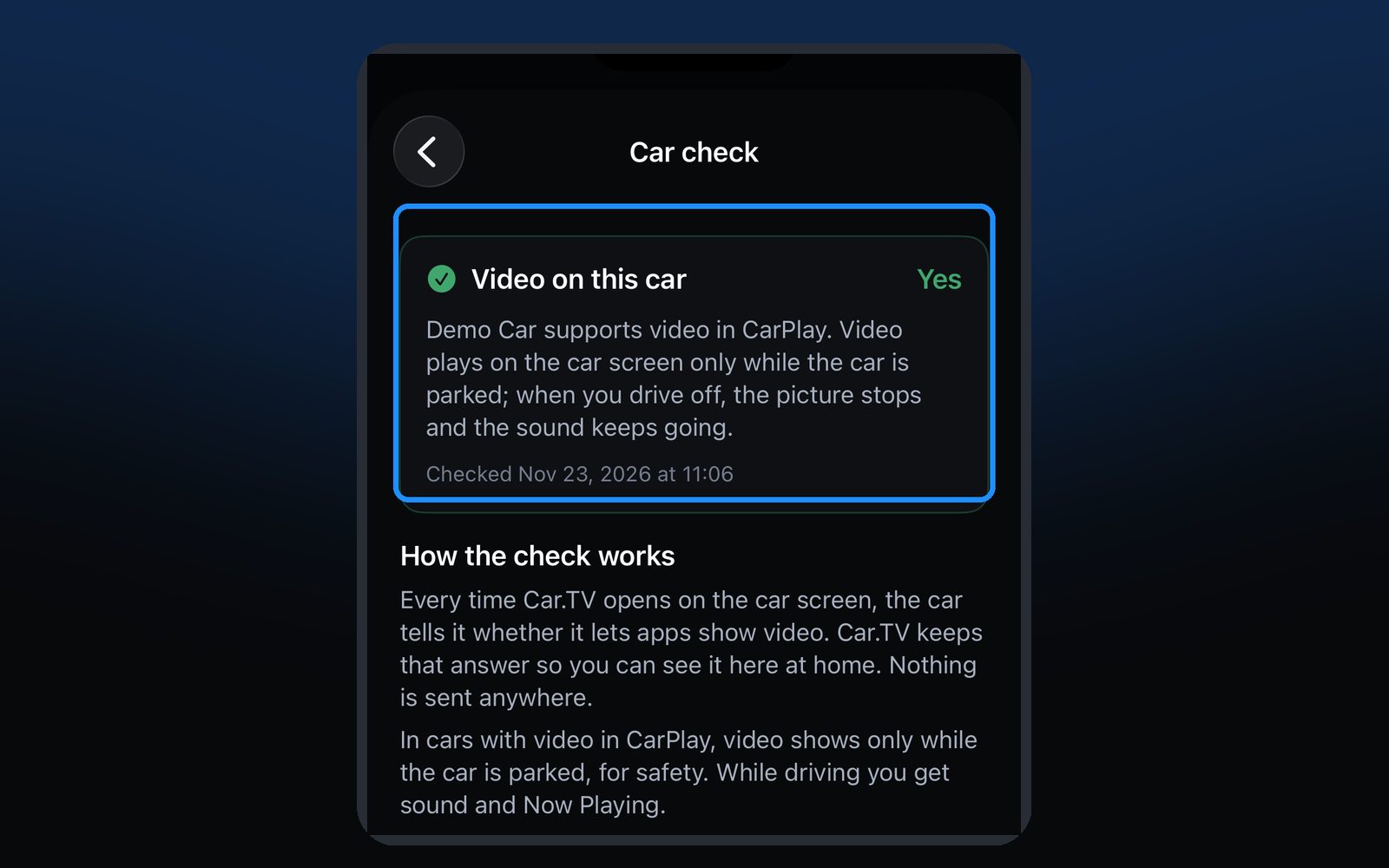
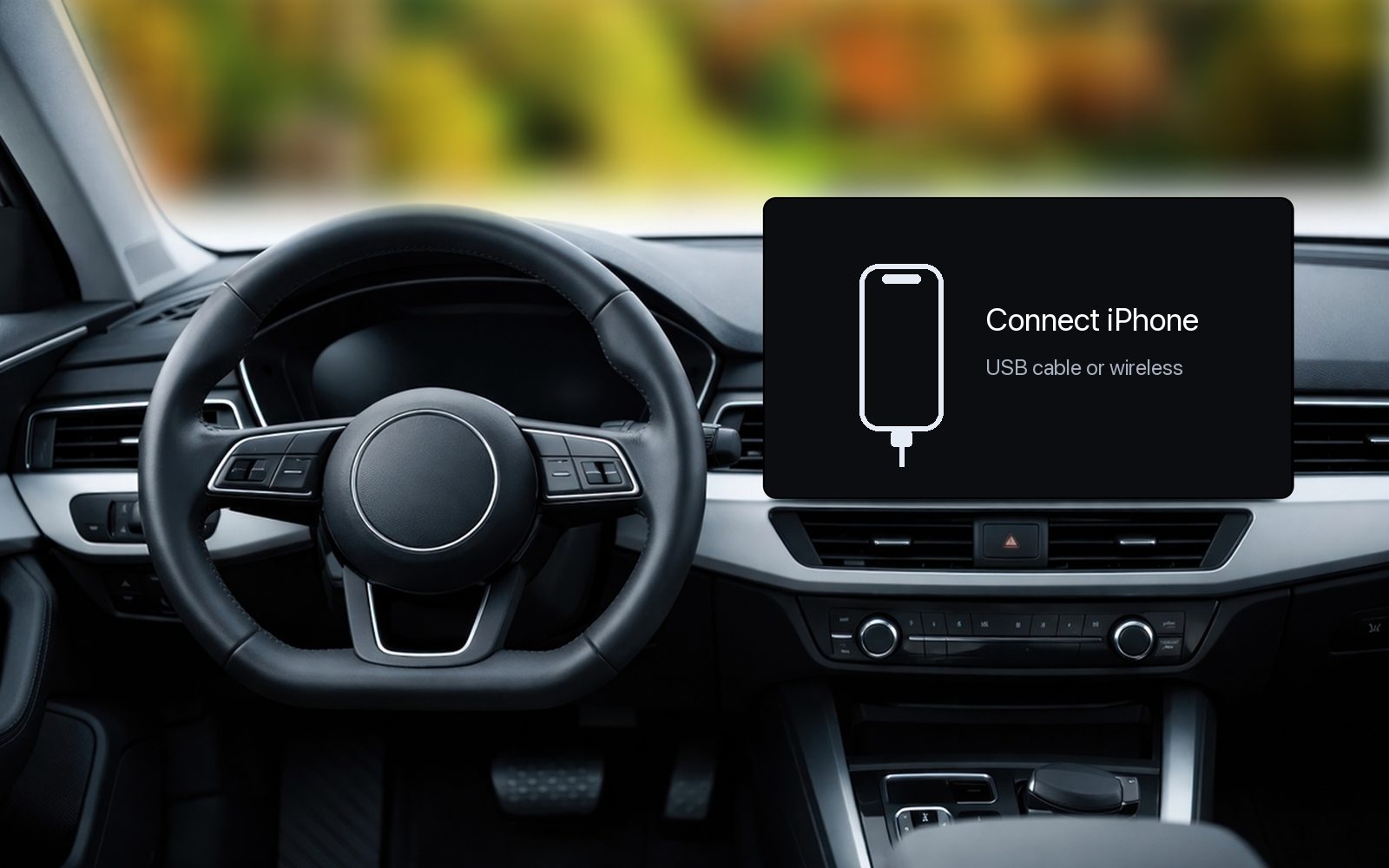
- Plug in, or go wirelessConnect your iPhone to the car's CarPlay USB port with a cable, or use wireless CarPlay if your car has it.
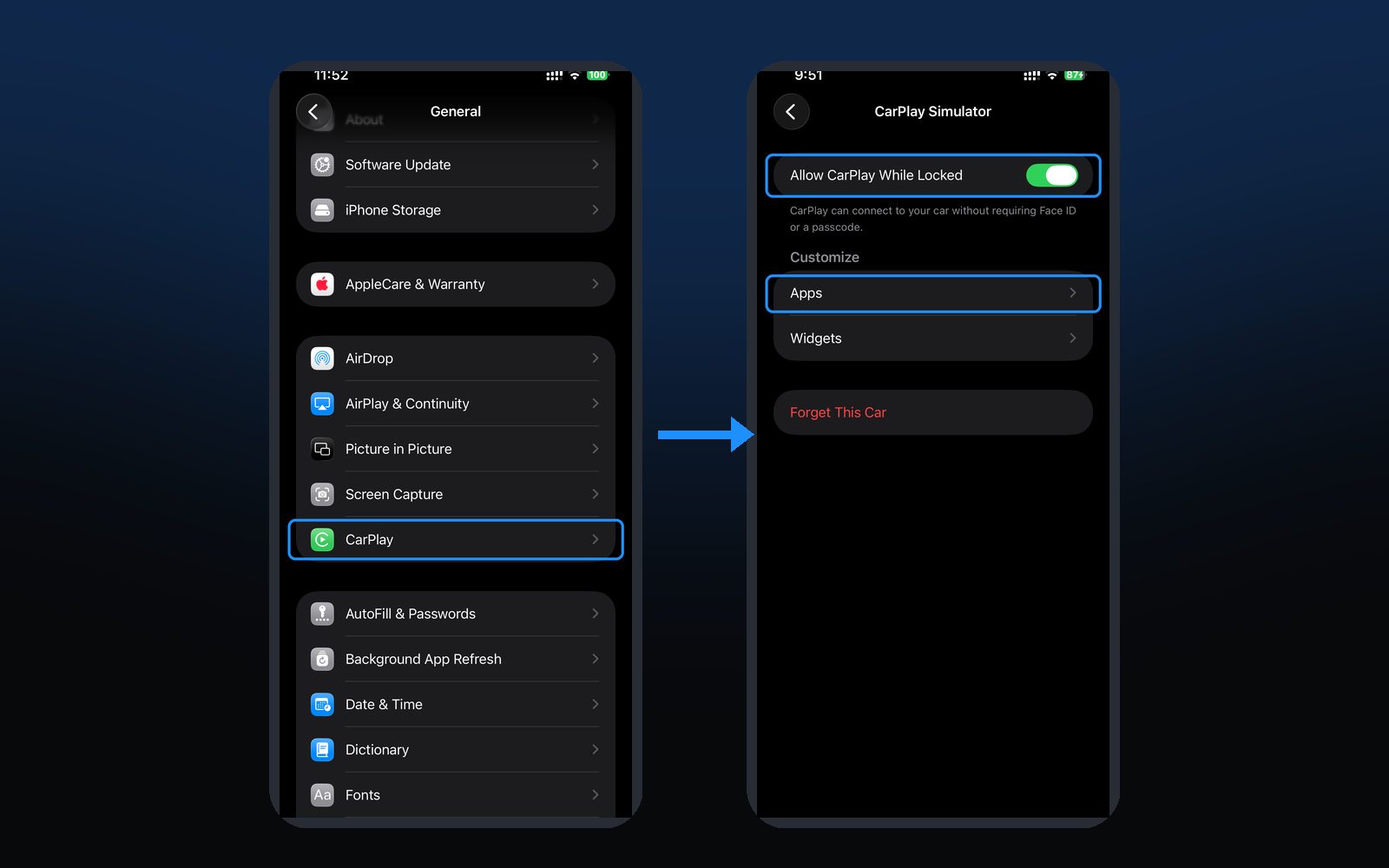
- Turn on CarPlay on iPhoneSettings › General › CarPlay › choose your car. Turn on Allow CarPlay While Locked.
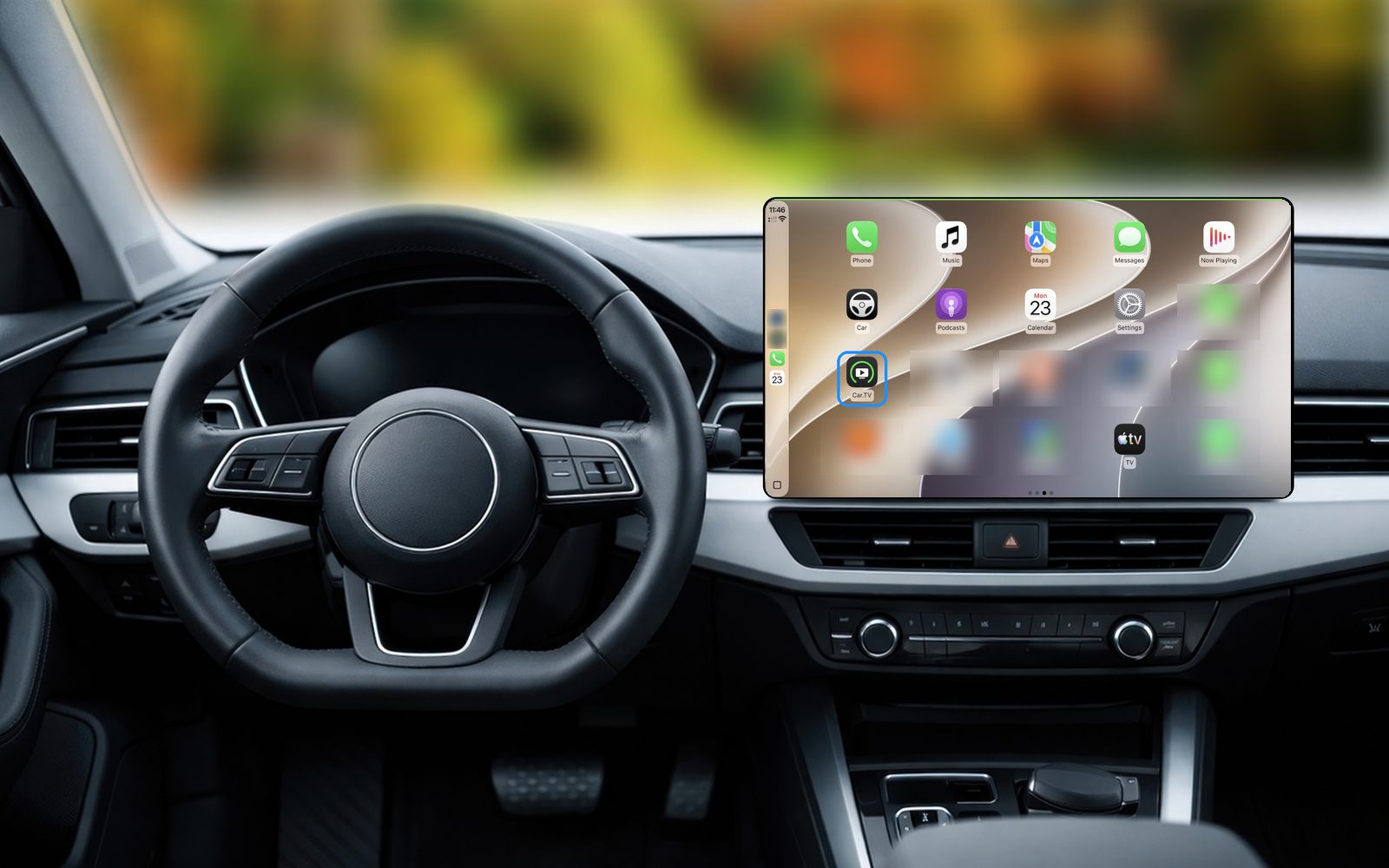
- Find Car.TV on the car screenTap Car.TV on the CarPlay home screen. Not there? On iPhone: Settings › General › CarPlay › your car › Customize › Apps.
- Pick something to watchLive TV, My videos, Music and Playlists are on the car screen, as on your phone.
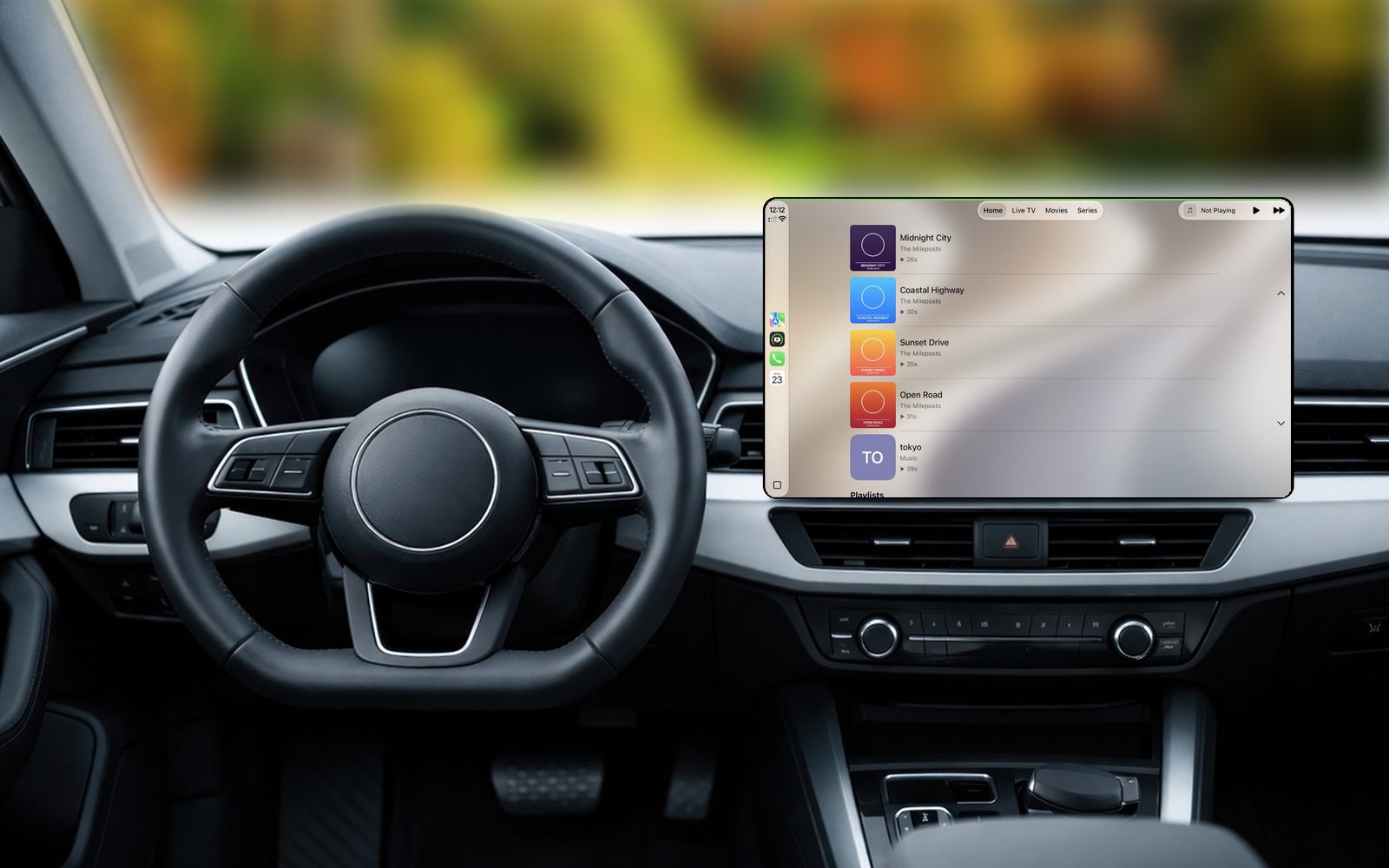
- Video when parkedWhen the car moves, CarPlay stops the picture and Car.TV keeps the sound — the phone shows "Car screen · sound only".
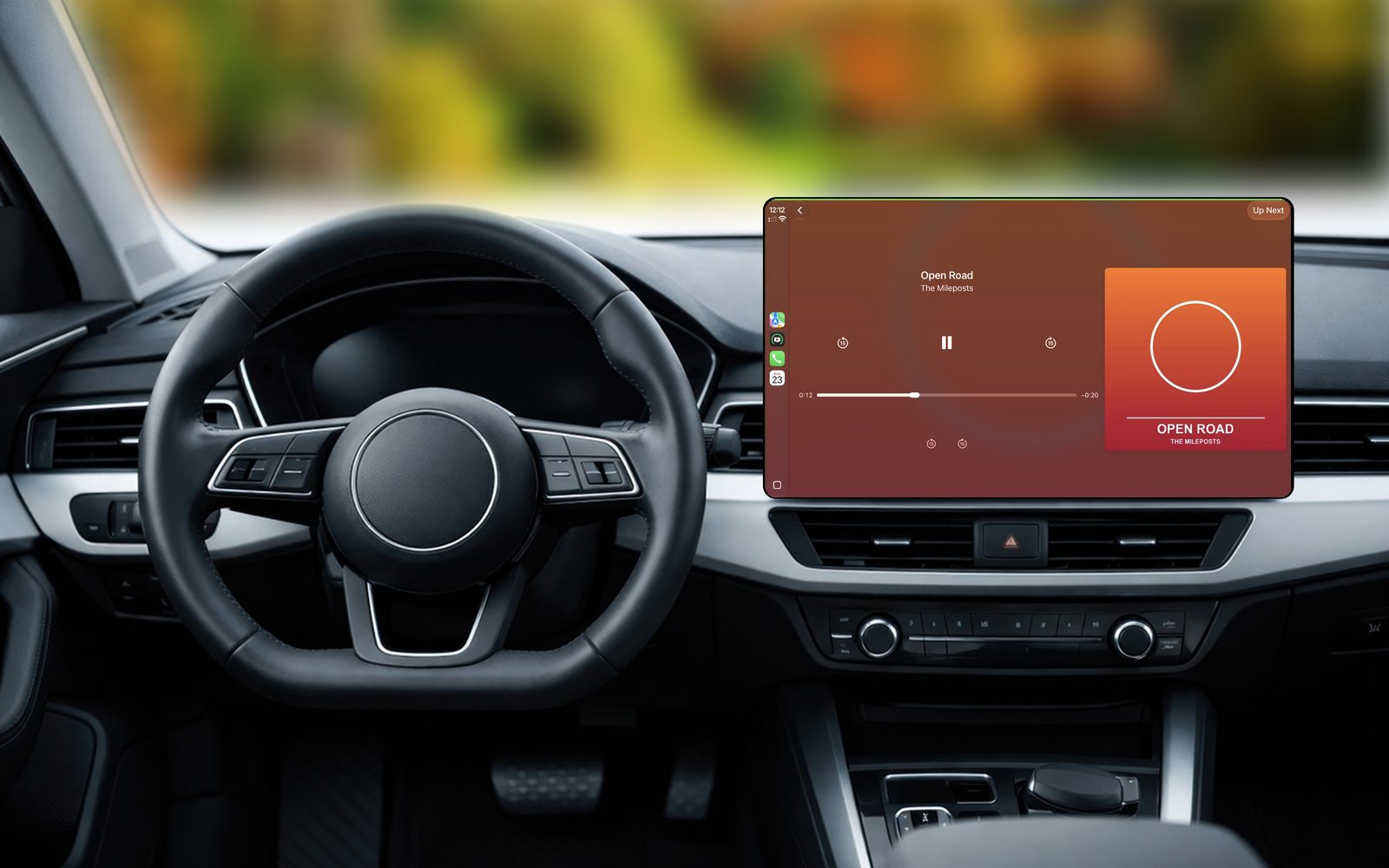
- Steering-wheel buttonsDuring live TV, next and previous change the channel. Turn this off in Settings › Playback.
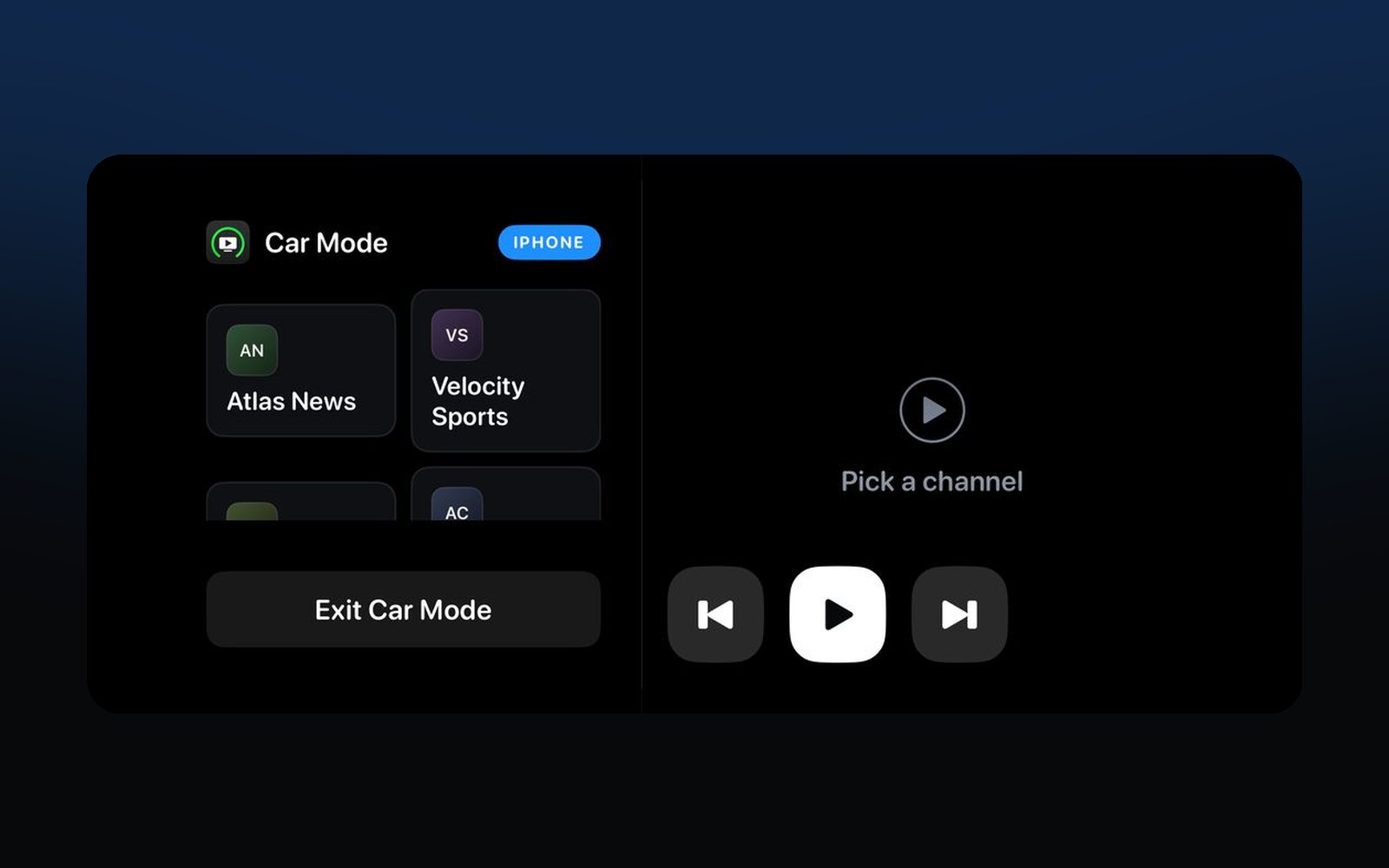
- Passengers: Car ModeOn the phone, Car Mode gives big tiles and big buttons. Drivers, keep your eyes on the road.
Get started
- Welcome to Car.TVYour live TV, films, videos and music — on your iPhone, on a TV, and on the car screen when parked. Here's a 1-minute tour.
- Add anything hereAn IPTV playlist (M3U), an Xtream portal, a Jellyfin, Emby or Plex server, a cloud folder, or videos from Files and Photos.
- Search everythingChannels, films, series, your own videos and songs.
- SettingsYour sources, Premium, language, Car Mode, the parental lock — and this guide.
- HomePicks up where you left off: Continue watching, On now and New in your library.
- Live TVEvery channel, by country or with filters. Long-press a channel for its guide and Favorites.
- LibraryYours first: My videos, Music and Playlists play offline. Movies and Series come from your sources.
- SavedYour favorites and downloads, for when there's no signal.
- No playlist yet?Try the sample channels and open films to see how everything works.
- The playerOpens full screen. Swipe it down and it keeps playing in a small bar while you browse.
- Bring your filesSend videos and music from a computer with Wi-Fi Transfer, or save them from the web with the Browser.
- Using Car.TV in the car?See how to connect CarPlay, step by step. You can replay this tour any time in Settings › How to use Car.TV.
Live TV
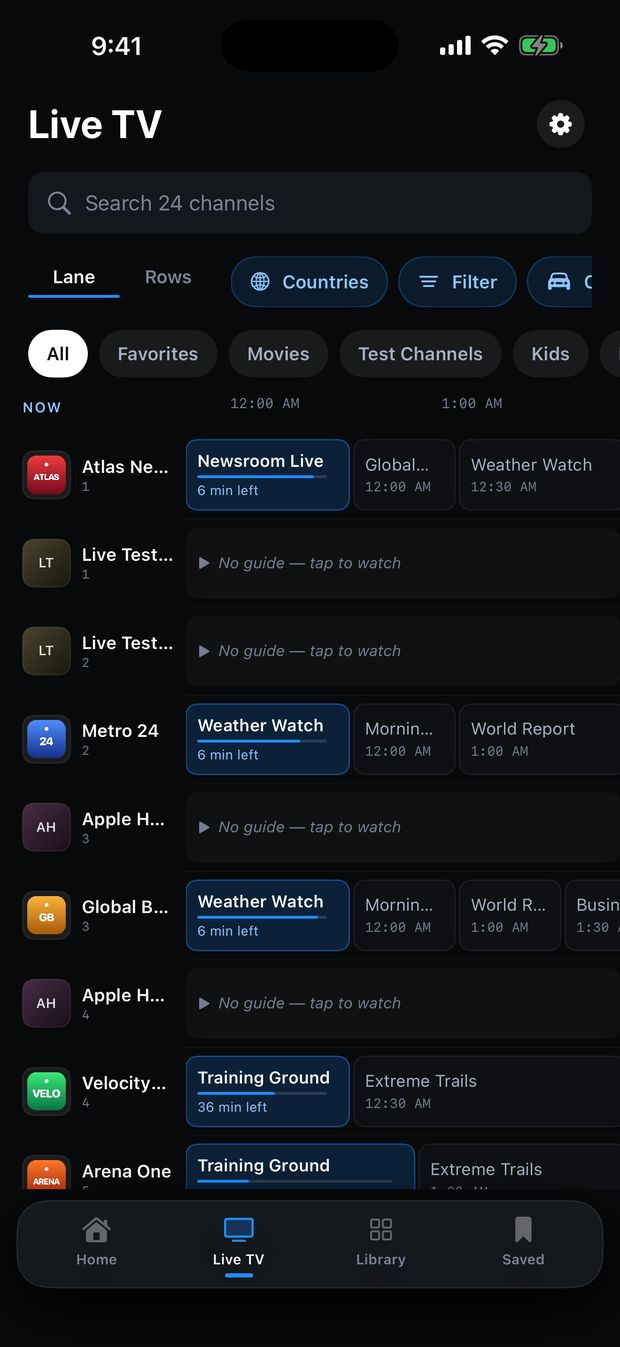
- Find a channelSearch every channel by name.
- Two layouts, countries, filtersLane or Rows; channels by country; filters by language, category and quality.
- Long-press a channelIts guide, Favorites, and Fix guide when the schedule is missing.
TV guide
- Swipe through timeTap a show on now to watch it.
- Catch upPast shows on channels with an archive offer Watch from start.
Library
- Your own filesMy videos, Music and Playlists. They play offline — on the road and in the car.
- From your sourcesFilms and series from your playlists and servers. Filter by source or category, and sort them.
- Search this shelfFinds just what's on the shelf you're looking at.
- Library remembersIt opens on the shelf you used last.
My videos
- Long-press a videoPlay next, Add to playlist, Rename, Choose a picture, Move to a folder, Share or Delete.
- Select severalMove, queue or delete many videos at once.
- Sort and viewBy date, name, size, length or last played — as a grid or a list. Storage is here too.
- Add videosFrom Files or Photos, from a computer with Wi-Fi Transfer, or from the web.
Music
- Songs, Albums, ArtistsBrowse your music the way you like.
- Swipe a songRight to add it to a playlist. Left to edit its details or delete it. Long-press for Play next.
- Sleep timerMusic stops by itself after the time you choose.
Playlists
- New playlistMix videos and songs in your own order — for the back seat or the road.
- ImportBring an .m3u playlist from another app.
- Smart playlistsKept up to date for you: recently added, not watched yet, short videos and more.
A playlist
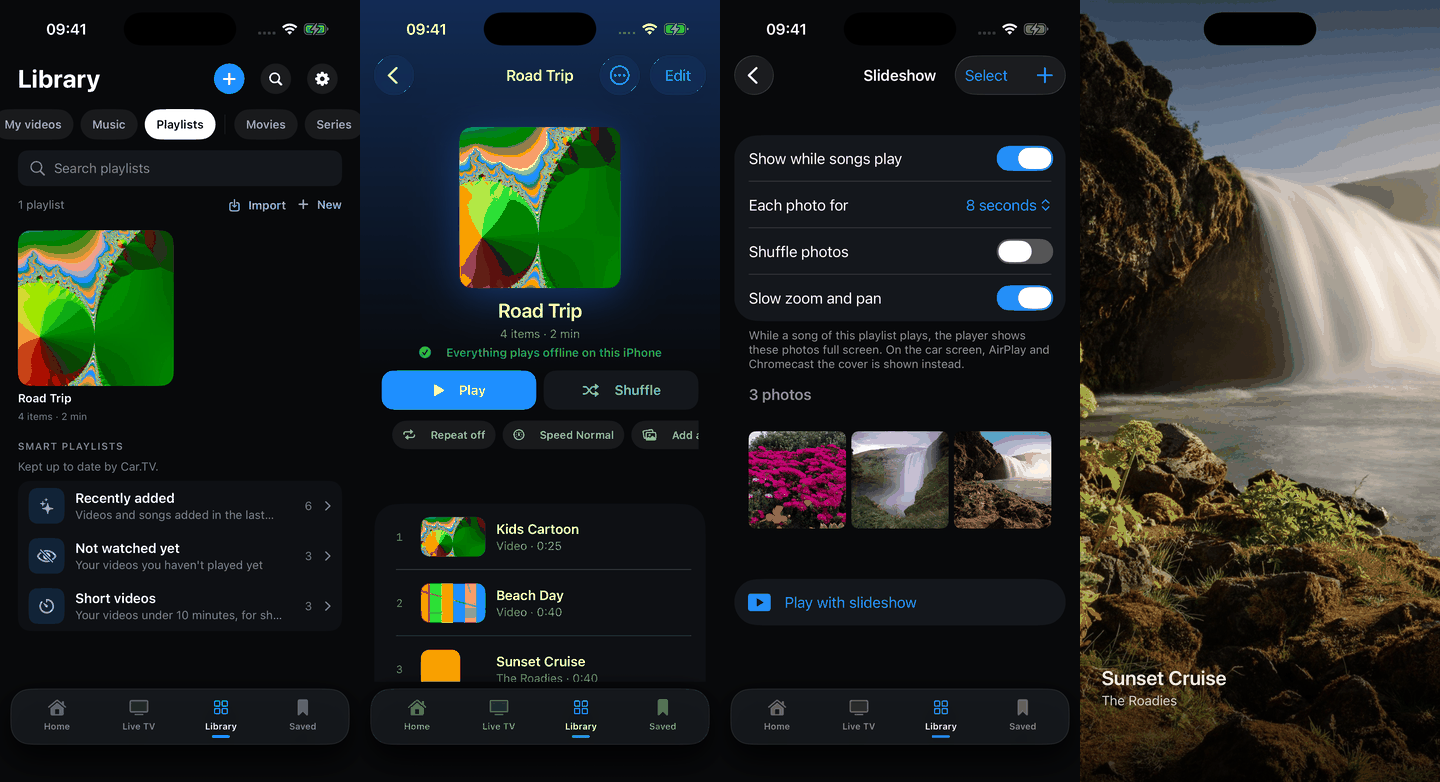
- Your coverChoose a cover from Photos or a frame of a video: ⋯ › Cover.
- Play or shuffleThe whole playlist, offline when everything is on this device.
- Repeat, speed, slideshowEach playlist keeps its own repeat and speed. Add photos and they play full screen while the songs play.
- MoreAdd videos or songs, edit details, pin, duplicate, export as M3U. Drag to reorder; swipe left to remove.
The player
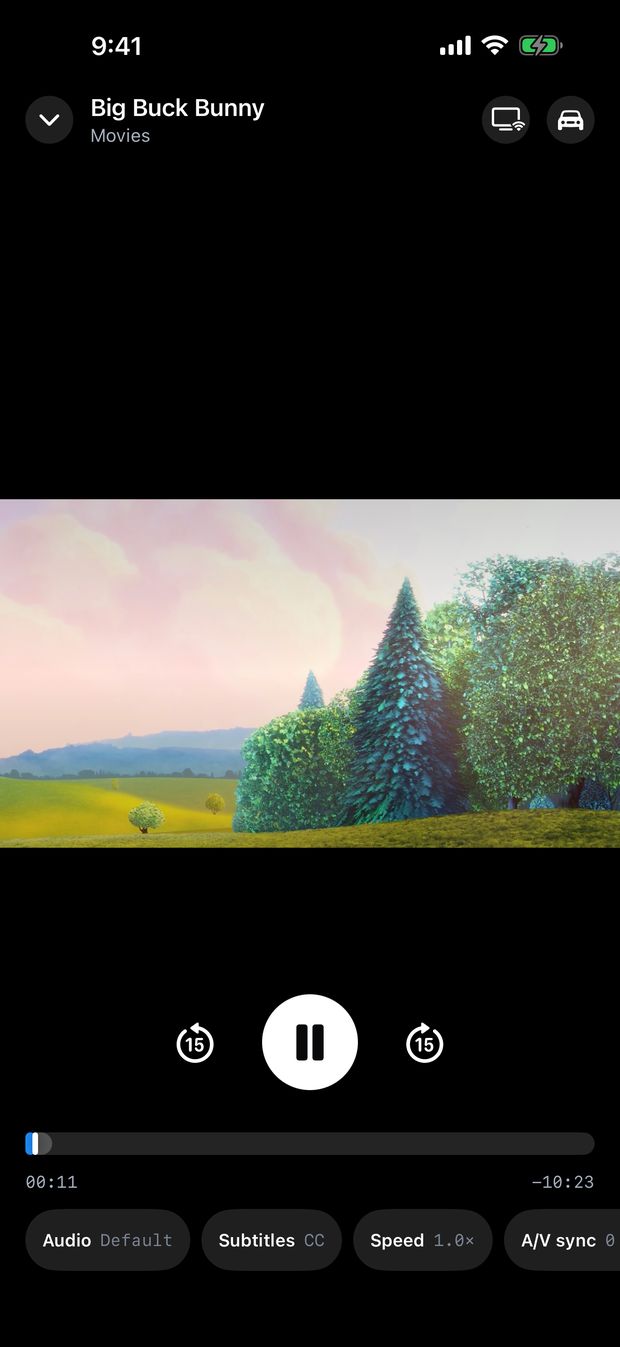
- Tap the pictureShows or hides the controls.
- Skip 15 secondsBack or forward 15 seconds; the middle button pauses.
- Picture, sound and moreFit, Fill or Zoom; audio track; subtitles; speed; A/V sync.
- Play on a TVAirPlay, Google Cast or a DLNA smart TV on your Wi-Fi.
- Car ModeBig buttons for passengers.
- Keep it playingClose or swipe down: it keeps playing in the small bar.
Car Mode
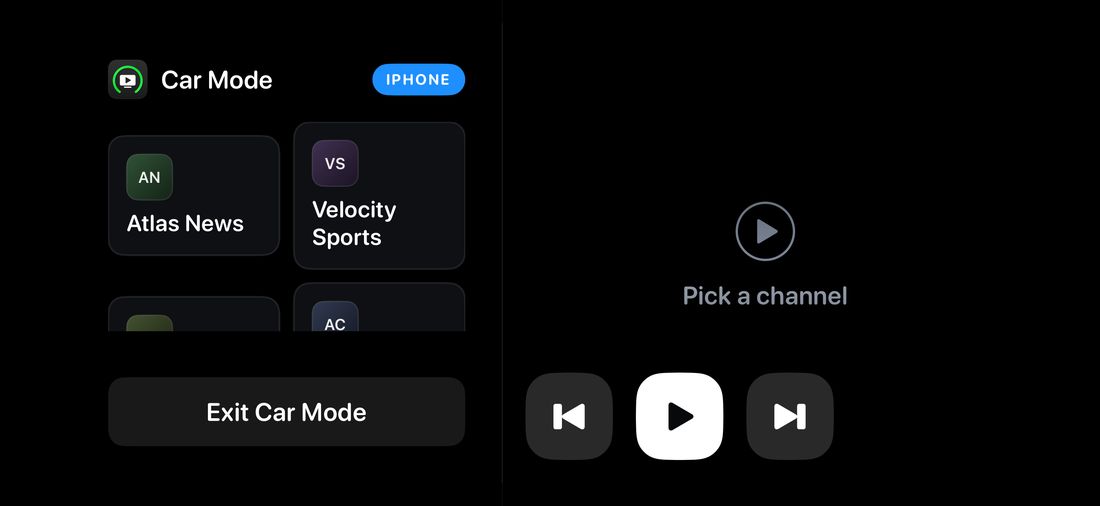
- For passengersBig tiles and big buttons. Drivers, keep your eyes on the road.
- Exit Car ModeBack to the full app.
Saved
- Favorites and downloadsLong-press a channel or open a film and tap Add to Saved. Downloads play with no signal.
Browser
- Search or type an addressThe start page keeps your favorites and the sites you visit often.
- TabsSeveral pages at once, and private tabs that keep no history.
- Save from This PageSave music and videos you have the right to keep. Songs go to Music, videos to My videos.
Wi-Fi Transfer
- Start the serverThen open the address shown on a computer on the same Wi-Fi and drop your files.
- Keep this screen openTransfers stop when you leave this screen. Songs go to Music, videos to My videos.
Settings
- Your sourcesAdd, edit, refresh or turn off playlists and servers.
- This guideReplay the tour, connect CarPlay, and read the guide in your language.
Questions
Why does the car screen play only sound while I drive?
That is how CarPlay video works, for safety: the picture shows only while the car is parked. When the car moves, CarPlay stops the picture and the sound keeps playing. No app can change this.
Car.TV isn't on my car screen. Why?
Car.TV appears only in cars that support video in CarPlay, with iOS 26.4 or later. Check Settings › General › CarPlay › your car › Customize › Apps, and see Car check in Car.TV's Settings.
Does Car.TV come with channels?
No. Car.TV plays what you add: an IPTV playlist or portal you have access to, your media server, or your own videos and music. Try the sample playlist to see how it works.
What plays without internet?
Everything in My videos and Music, your downloads, and playlists made of them. A playlist tells you when an item needs the internet.
How do I get my videos and music into Car.TV?
From Files or Photos with the + button, from a computer with Wi-Fi Transfer, by AirDrop or the Share button, or from the web with the Browser.
How do I make a playlist with a photo slideshow?
Library › Playlists › New, add songs, then Add a slideshow and pick photos. Play the playlist and the photos fill the screen while the songs play.
Do my playlists show on my other devices?
Yes, with Premium and iCloud sync turned on in Settings. Videos and songs stay on the device they were added to, so a playlist on another device lists what that device has.
Does Car.TV collect my data?
No. There is no account, no ads and no tracking. Your sources, playlists and photos stay on your devices and, if you turn it on, in your own iCloud.
More questions? See the full FAQ →
Never watch video while driving. CarPlay shows video only while the car is parked; while driving, the driver should only ever listen.